containers is published by Microsoft from microsoft/azure-dev-tools, pinned to a58ca3cacced9dbb116687377b404149898cdaa8. Review the source before installing.
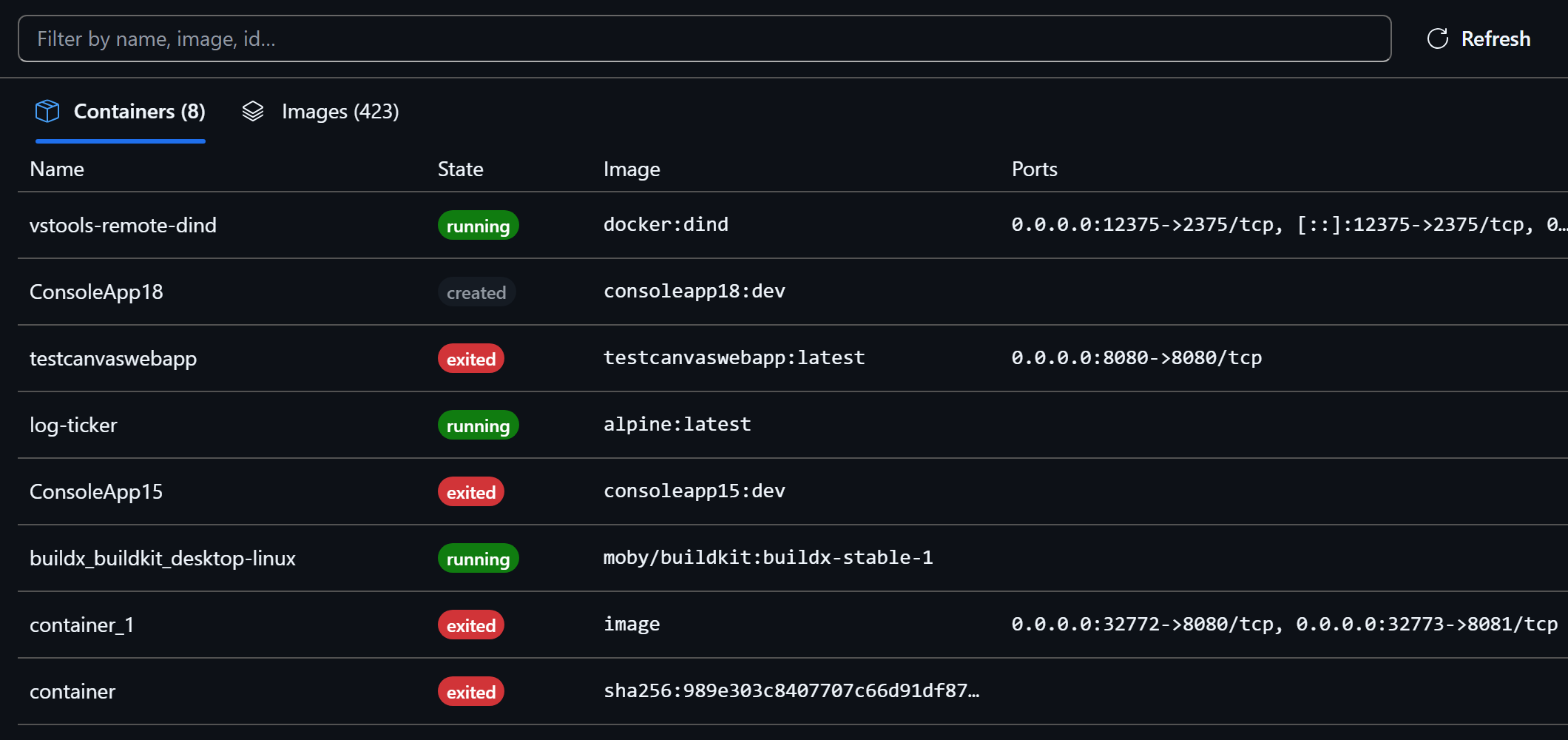
Browse and operate your local Docker or Podman containers and images in a panel: sortable lists, live log streaming with filtering, CPU and memory charts, a filesystem browser, image layer size breakdown, and recorded Dockerfile provenance.
Install
In GitHub Copilot, open Customize → Plugins → marketplace gear, add
microsoft/azure-dev-tools (marketplace ID azure-dev-tools), and install
containers when listed. The full plugin includes the canvas and its opening
skill.
For canvas-only installation, add the Containers canvas URL under Customize → Canvases → +. This does not install the opening skill; open Containers from your installed canvases.
The latest customer README contains the same setup instructions. Use these paths only when published; if neither is available, report that rather than substituting a source folder.
Quickstart
- With the full plugin installed, ask Copilot: "Open Containers canvas." For a canvas-only installation, open Containers from installed canvases.
- Choose a container to inspect its status, ports, mounts and lifecycle controls.
- Open Logs to follow output or Stats to watch CPU, memory and network.
- Ask "Why did web stop?" or "Why is my node image so large?" and Copilot opens the matching view.
What you can do
- See every container and image, sorted, with live state from the daemon.
- Follow logs as they stream, and filter them.
- Watch CPU, memory and network for a running container.
- Browse the filesystem of a running container that provides
ls, and read a known file path from stopped or distroless containers. - Break an image into layers to see what made it large.
- Recover what an image records about its source repository and commit.
- Get an interactive shell in a running container — click terminal in the panel, or just ask Copilot.
Requirements
- A canvas-capable GitHub Copilot host
- Node.js 22 or later
- Docker Desktop or Docker Engine with a reachable daemon
Podman is detected when Docker is absent and its core paths work, but it has not received the same real-daemon qualification as Docker.
Troubleshooting
- Canvas unavailable: check that the plugin is enabled, reload extensions, fully quit and reopen GitHub Copilot, then retry in a fresh chat.
- No containers or images: verify that Docker is installed and that its daemon is running, then reopen the canvas.
- Permission denied: confirm your user can run
docker pswithout elevation. The canvas uses the same local runtime access. - Terminal unavailable: the interactive shell is handed to the host
Terminal canvas. Use the displayed
docker execcommand in your own terminal when that canvas is unavailable.